BuddyChat XP
BuddyChat XP is a lightweight, retro-styled web interface for your local llama.cpp server. It looks and feels like a 2007 Windows XP application — Luna blue title bars, Tahoma 11px text, a sunken status bar, and a chat log that streams replies token by token.
It ships in three separate HTML pipelines so it works from IE8
all the way up to current Chrome, Firefox, and Safari. No build step. No
dependencies. Runs against a local llama serve instance or any
hosted OpenAI-compatible API. Includes a full IM-era sound kit, a nudge
button, and an AIM-style typing indicator.
Install
Three commands get you from nothing to chatting. First install llama.cpp, then download and run a model, then install BuddyChat XP. Each command is copy-paste ready.
Step 1 — Install llama.cpp
llama.cpp ships its own installer. It handles platform detection, GPU acceleration, and dependency setup automatically.
irm https://llama.app/install.ps1 | iexmacOS / Linux (Terminal)
curl -LsSf https://llama.app/install.sh | sh
Installs the llama command. If you already have
llama-server or a built copy of llama.cpp, you can
skip this step — anything that speaks the OpenAI-compatible API
works.
Step 2 — Download and run a model
The llama serve command can download a model straight from
Hugging Face and start the server in one go. The default is
Bonsai-8B — a 1-bit quantized 8-billion-parameter model
that fits in about 1.15 GB of memory and runs on almost anything.
llama serve -hf prism-ml/Bonsai-8B-gguf:Q1_0
The -hf flag tells llama serve to pull
the model from Hugging Face on first run and cache it locally
afterwards. The :Q1_0 suffix selects the 1-bit
quantization this model is published in — without it,
llama serve may not know which file to fetch.
The server listens on http://localhost:8080
by default — the same URL BuddyChat XP expects.
Verify the server is up by opening
http://localhost:8080/v1/models in a browser — you
should see a JSON response listing your model.
Bonsai models come in three sizes. Pick the one that matches your hardware — the smaller sizes use less RAM and are faster, the larger ones write better.
| Model | RAM needed | Best for |
|---|---|---|
| Bonsai-27B | ~3.4 GB | Mid-range PCs with 8 GB+ of RAM and a modern GPU |
| Bonsai-8B (default) | ~1.15 GB | Most machines, including laptops and older desktops |
| Bonsai-4B | ~0.6 GB | Low-end machines, Raspberry Pi, Windows XP boxes |
llama serve -hf prism-ml/Bonsai-4B-gguf:Q1_0Bonsai-27B — for mid-range PCs
llama serve -hf prism-ml/Bonsai-27B-gguf:Q1_0
If you're not sure which to pick, start with the default Bonsai-8B. If it feels slow or your machine runs out of memory, drop down to Bonsai-4B. If you have a capable GPU and want better responses, try Bonsai-27B.
If you want to try something other than Bonsai, any Hugging Face
GGUF repo works with llama serve. Just swap in the
repo name and quantization tag.
llama serve -hf unsloth/Qwen3-4B-GGUF:Q4_0Llama 3.2 3B — Meta's small model
llama serve -hf bartowski/Llama-3.2-3B-Instruct-GGUF:Q4_K_M
Any model that speaks the OpenAI-compatible API will work.
Swap -hf for a local file path if you already
have a GGUF on disk.
Step 3 — Install BuddyChat XP
Now the front end itself. The installer downloads a tagged release,
extracts it to a per-user location, and creates a buddyxp
command that wraps the platform launcher. No admin rights. No build step.
irm https://aetex.is-a.dev/buddyxp/install.ps1 | iexmacOS / Linux (Terminal)
curl -fsSL https://aetex.is-a.dev/buddyxp/install.sh | sh
Windows: requires PowerShell 5.0 or newer
(Windows 10, 11, or 8.1 / 7 SP1 with PowerShell updated).
Installs to %LOCALAPPDATA%\BuddyXP.
macOS / Linux: installs to
${XDG_DATA_HOME:-$HOME/.local/share}/buddyxp.
Both installers need Python 3, Python 2, or Node.js on your system to serve the files. If none are found, the installer offers install hints and lets you continue anyway.
Step 4 — Run it
Open a new terminal so your PATH updates take effect, then run:
buddyxp
The launcher shows a Windows XP-style setup prompt asking which browser pipeline to use, then starts a local server and opens your browser. Type a message and Buddy replies.
Windows XP SP3
Windows XP doesn't have PowerShell 5.0 or modern curl, so
the one-line installers don't apply. XP users should:
- Download the repo as a ZIP and extract it.
- Install Python 2.7.18 — the last Python release that supports XP SP3. python.org/download/releases/2.7.18. During setup, tick Add python.exe to Path.
- Double-click
launch-xp.bat.
Bonsai-4B is the best match for XP-era hardware. At under a gigabyte of RAM it runs comfortably on the same machines that shipped with the operating system. Bonsai-8B works too if the machine has at least 2 GB of free memory.
Manual install
If you'd rather install by hand, or you're on an unsupported platform, clone the repo and run a launcher directly:
git clone https://github.com/Aetex/buddyxp.git
cd buddyxp
Then pick the launcher for your OS:
- Windows Vista+ —
launch.ps1or double-clicklaunch.bat - Windows XP SP3 —
launch-xp.bat - Linux / macOS —
./launch.sh
Updating
Re-run the installer. It overwrites the install directory and leaves your
settings untouched — those live in your browser's localStorage,
not in the install folder.
Uninstalling
Windows:
Remove-Item -Recurse -Force "$env:LOCALAPPDATA\BuddyXP"
# Then remove "$env:LOCALAPPDATA\BuddyXP\bin" from your user PATH.
macOS / Linux:
rm -rf "${XDG_DATA_HOME:-$HOME/.local/share}/buddyxp"
rm -f  "$HOME/.local/bin/buddyxp"
# Then remove the "buddyxp-PATH" block from your shell rc file.
Screenshots
BuddyChat XP looks and behaves like a 2007 Windows XP application, whether you run it on a real XP machine or in a modern browser.
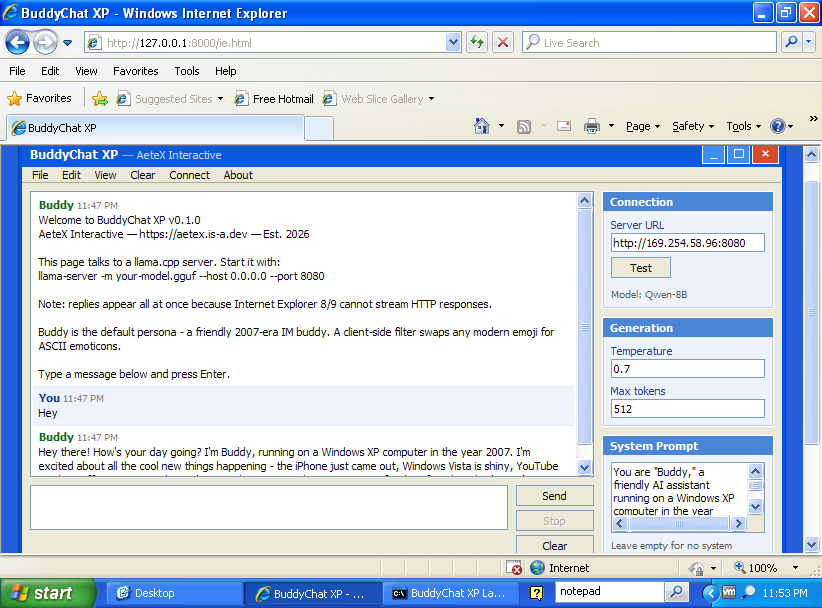
ie.html in IE8 on Windows XP SP3
|
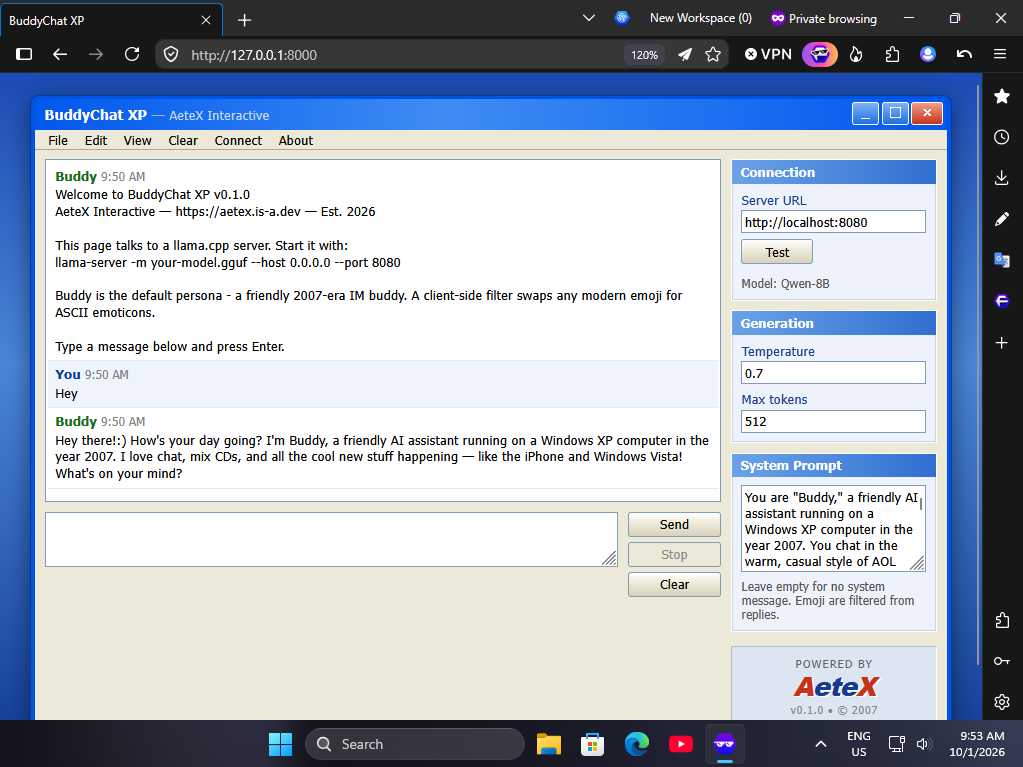
index.html in a modern browser
|
About the Project
BuddyChat XP is a front end for any OpenAI-compatible model server. It
was built against llama.cpp
and works out of the box with the llama serve command, but
anything that answers /v1/chat/completions will work —
LM Studio, Ollama, text-generation-webui, and hosted endpoints are all
fine.
The default persona is Buddy, a friendly 2007-era IM buddy who
avoids emoji and talks like it is still AIM and MSN Messenger. A client-side filter
converts any emoji the model produces into ASCII equivalents (:),
:D, ;), <3, (y)) and strips
anything pictographic that isn't in the map.
Three browser pipelines
index.html— Modern browsers. Usesfetch+ReadableStream+AbortController. Streams replies.legacy.html— Firefox 3.5+, Chrome 4+, Safari 4+, MyPal/Goanna, IE10/11. UsesXMLHttpRequestwithContent-Type: text/plainso no CORS preflight is sent.ie.html— IE8 / IE9. UsesXDomainRequest. The reply appears all at once because IE8/9 cannot stream HTTP responses.
All three share the same xp.css theme and xp-common.js
helpers. Changing the layout or theme only requires editing one place.
How to Use
- Type a message in the box at the bottom and press Enter to send. Shift+Enter inserts a new line.
- Send sends the message. Stop cancels a reply mid-stream. Clear wipes the conversation.
- The Connection pane lets you change the server URL or pick an online provider, and test the connection. The status bar at the bottom turns green when the server responds and red when it doesn't.
- The History pane lists every conversation. Click any one to reload it. New starts a fresh chat, Delete removes the current one.
- The Buddy's Memory pane holds facts Buddy has learned about you across chats. Click Remember this to extract facts from the current conversation. Click the × on any fact to forget it.
- The Generation pane has temperature and max tokens.
0.7and512are good defaults. Bonsai-8B's own model card suggests a temperature of0.5. - The System Prompt pane controls the persona. The default is the 2007-era Buddy. Edit or clear it however you like.
- Settings persist in
localStorageunder the keybuddyChatXp.settings.v1.
Forcing a specific version
If you want to test the legacy or IE pipeline in a modern browser, open the file directly:
http://localhost:8000/legacy.html
http://localhost:8000/ie.html
Note that ie.html will immediately redirect you to
index.html if your browser has fetch.
Sounds & Effects
BuddyChat XP has a full IM-era sound kit, synthesized on the fly with the Web Audio API. No audio files, no external dependencies, no licensing questions. Every sound is generated from oscillators and white noise at the moment it plays.
What plays when
| Event | Sound | Style |
|---|---|---|
| First page load | Login chime | MSN-style three-note rising arpeggio (E5 → G5 → C6) |
| New chat / load chat | Door open | Rising whoosh with a soft click |
| Clear chat / delete chat | Door close | Falling whoosh with a low thud |
| Send a message | Send blip | Subtle rising two-tone |
| First token arrives | AIM ding | Two-tone up (D5 → A5 → D6) with overtones |
| Nudge button | Nudge buzz | Low-frequency square-wave rumble with vibrato |
The nudge
The Nudge button in the toolbar does what MSN nudges did in 2004 — it shakes the whole window and plays a buzzing rumble. In modern browsers the shake uses a CSS keyframe animation. In IE8 and IE9 it falls back to a JavaScript-driven loop that shifts the window frame by frame, so the effect still works on XP machines.
The typing indicator
While waiting for the model's first token, the bot message slot shows an animated AIM-style indicator: a small pencil bobbing back and forth next to the text "Buddy is typing" followed by three pulsing dots. As soon as the first token arrives, the indicator is replaced by the streamed reply and the AIM ding plays.
The pencil is pure CSS — no images. It's built from a triangle for the tip, a yellow rectangle for the shaft, and a red rectangle for the eraser.
Sound toggle
A Sound On / Sound Off button in the toolbar toggles all effects. The setting persists across reloads. Sound is on by default.
Autoplay and the first click
Browsers block audio until the user interacts with the page. BuddyChat XP handles this by deferring the login chime until the first click, keypress, or touch. Every sound after that plays immediately. If you don't hear anything on load, click anywhere on the page once and the chime will fire.
IE8 and IE9
Internet Explorer 8 and 9 don't have the Web Audio API, so all sounds are silently skipped. The nudge visual still works via the JavaScript fallback, and the typing indicator renders as static text with dots. The sound toggle still functions so the label matches the other pipelines.
Online Models
BuddyChat XP works with a local llama.cpp server by default, but you can also point it at a hosted API. Pick a provider from the sidebar dropdown and the connection pane swaps to the right fields.
Supported providers
| Provider | Endpoint | Default model |
|---|---|---|
| Local (llama.cpp) | http://localhost:8080/v1 |
— |
| OpenAI | https://api.openai.com/v1 |
gpt-4o-mini |
| OpenRouter | https://openrouter.ai/api/v1 |
openai/gpt-4o-mini |
| Groq | https://api.groq.com/openai/v1 |
llama-3.3-70b-versatile |
| Together | https://api.together.xyz/v1 |
meta-llama/Llama-3.3-70B-Instruct-Turbo |
| DeepSeek | https://api.deepseek.com/v1 |
deepseek-chat |
| Mistral | https://api.mistral.ai/v1 |
mistral-small-latest |
| Custom | (any OpenAI-compatible URL) | (any model name) |
To use one, pick it from the dropdown, paste your API key, and click Test. Your choice and your key are saved separately for each provider, so switching back and forth doesn't lose anything.
Keys are saved in localStorage on the same origin
as the page. They are not encrypted. Anyone with access to your
browser profile or dev tools can read them.
This is fine on a personal machine. It is not fine on a shared computer. The UI shows a warning under the API Key field when an online provider is active.
Internet Explorer 8 and 9
ie.html does not support online providers. IE8/IE9's
XDomainRequest cannot send Authorization
headers, so authenticated cross-origin requests are impossible without
a proxy. The Provider dropdown in IE mode shows only Local
(llama.cpp).
Memory & History
BuddyChat XP keeps track of your conversations and can remember facts about you across them.
Conversation history
Every conversation is saved automatically and listed in the
History pane. Click any entry to reload it. The most
recent 100 conversations are kept; older ones are dropped silently.
Each conversation is small (a few KB typically), so the whole history
fits comfortably in the 5 MB localStorage budget.
Buddy's Memory
Buddy's Memory is a list of facts the model has learned about you. On every request those facts get prepended to the system prompt — the model doesn't actually remember anything itself, it's context injection. But it produces the effect of an assistant that knows you across sessions, which is what most people want.
To teach Buddy a fact: have a conversation, then click Remember this in the Buddy's Memory pane. The app sends the transcript back to the model with a prompt asking it to extract durable facts — names, locations, preferences, ongoing projects. They appear in the list within a second or two.
To remove a fact: click the × next to it. To clear all: click Forget all. To turn memory off: uncheck Remember across chats — your facts stay but stop being sent to the model.
How facts are stored
Each fact is a short string like "User lives in Berlin" or "User is learning Python". The app caps you at 100 facts and dedupes identical entries. When the cap is reached, the oldest facts get dropped.
Facts are stored in localStorage under
buddyChatXp.memory.v1, separate from conversations. Clearing
conversation history doesn't touch memory, and vice versa.
What actually gets sent
When memory is enabled and you send a message, the system prompt is constructed like this:
You remember the following things about this user from past conversations:
- User lives in Berlin
- User is learning Python
- User prefers short answers

Use them naturally if relevant. Do not list them back or announce that
you remember them. If the user corrects a fact, drop it.

[your normal system prompt follows]
Then your conversation history, then your new message. The model sees all of it and responds as if it remembers.
Privacy
Everything is client-side. Facts and conversations live in your
browser's localStorage. The only time they leave your
machine is when the app sends them to the model — local llama.cpp or
whichever online provider you've configured.
If you use an online provider, your memory facts go to that provider on every message. If that's a problem, disable memory or use a local model.
Working across providers
Memory is provider-agnostic. You can teach Buddy facts while talking to a local model and they'll be sent to OpenAI next time you switch providers. The reverse also works. There's one shared memory list regardless of which model produced it.
License
BuddyChat XP is released under the MIT License.
MIT License

Copyright (c) 2025 AeteX Interactive

Permission is hereby granted, free of charge, to any person obtaining a copy
of this software and associated documentation files (the "Software"), to deal
in the Software without restriction, including without limitation the rights
to use, copy, modify, merge, publish, distribute, sublicense, and/or sell
copies of the Software, and to permit persons to whom the Software is
furnished to do so, subject to the following conditions:

The above copyright notice and this permission notice shall be included in all
copies or substantial portions of the Software.

THE SOFTWARE IS PROVIDED "AS IS", WITHOUT WARRANTY OF ANY KIND, EXPRESS OR
IMPLIED, INCLUDING BUT NOT LIMITED TO THE WARRANTIES OF MERCHANTABILITY,
FITNESS FOR A PARTICULAR PURPOSE AND NONINFRINGEMENT. IN NO EVENT SHALL THE
AUTHORS OR COPYRIGHT HOLDERS BE LIABLE FOR ANY CLAIM, DAMAGES OR OTHER
LIABILITY, WHETHER IN AN ACTION OF CONTRACT, TORT OR OTHERWISE, ARISING FROM,
OUT OF OR IN CONNECTION WITH THE SOFTWARE OR THE USE OR OTHER DEALINGS IN THE
SOFTWARE.
You can also read the full LICENSE file in the repository.
Credits
- Front end, XP theme, launchers: AeteX Interactive
- Model server: llama.cpp by Georgi Gerganov and contributors
- Default model: prism-ml/Bonsai-8B-gguf on Hugging Face
- Default persona: Buddy, a fictional 2007-era IM buddy